Safe ownership guide · Fact-checked July 13, 2026
Maintain the robot you own—not an imaginary “universal” robot
Plastic shells, camera covers, touchscreens, synthetic fur, charging contacts and moving joints cannot all be cleaned the same way. This guide gives you a safe maintenance framework, then shows where the manufacturer’s instructions must override generic advice.
Dry before wetUse the least aggressive method
Service before surgeryProtect batteries, data and warranty
The safe default
A five-step maintenance decision
Identify
Confirm the exact model, revision, charger and official support page. Advice for aibo may be wrong for EMO or a fabric-covered companion pet.
Observe
Record the symptom before changing anything: status light, sound, error message, battery duration, surface, room temperature and recent update.
Use the manual
Find the approved shutdown, cleaning, charging, update and reset instructions. Save the page or PDF for the model you own.
Start gently
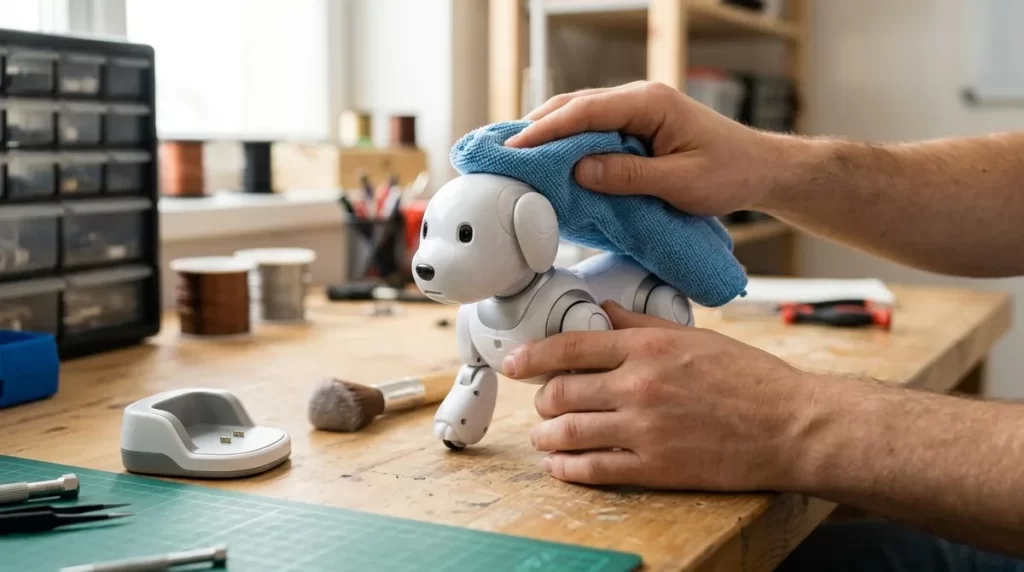
Use a dry, clean, soft cloth and remove loose debris without pressure. Add moisture or cleaner only when the manufacturer explicitly permits it.
Escalate safely
If the symptom persists or safety is involved, stop experiments and contact authorized support with your notes, serial number and proof of purchase.
Real product examples
How official care instructions differ
| Product type | Official example | Safe documented action | Important restriction |
|---|---|---|---|
| Mobile robot pet | Sony aibo ERS-1000 | Gently wipe dust with a dry, soft cloth; use a blower or soft cloth on camera and sensor covers | No alcohol, paint thinner, joint lubricant, outdoor use or unnecessary disassembly |
| Desktop robot | LivingAI EMO | Align the left foot with the charging mark; a steady station light indicates correct charging | Follow the official update sequence and keep the robot on its charger when required |
| Robotic companion pet | Joy for All Cat | Manufacturer permits its published fur-cleaning process using a specified type of non-toxic toy cleaner and dry towel | Do not soak the fur or place the product under running water |
| Connected stationary companion | ElliQ and similar screen devices | Use the current user guide and support instructions for the screen, camera, microphones and service account | Do not infer care steps from a tablet or smart speaker with different coatings and openings |
Manufacturer references: Sony aibo notes on use, LivingAI EMO charging, LivingAI EMO updates and Joy for All care instructions.
Cleaning without damage
Use a surface-by-surface method
Work in good light on a stable table or floor. Remove jewelry that could scratch the shell, wash and dry your hands, and keep liquids away from the workspace unless the manual requires one. Never clean a robot while it is moving, charging or installing an update.
Hard plastic and painted surfaces
Begin with a dry microfiber cloth using light pressure. Do not assume alcohol, disinfectant, solvent or a “magic eraser” is safe; each can dull, soften or remove a finish.
Cameras and sensor windows
Remove loose particles with a manual lens blower when permitted, then use a clean optical-grade cloth without pressing. Scratches and fingerprints can reduce detection performance.
Touchscreens and eyes
Power down and wipe only with the material and moisture level specified for that coating. Spray never goes directly onto a display; it can run into the bezel.
Microphone and speaker openings
Keep liquid, swabs and sharp tools out of grilles. Use a soft dry brush only if the manual permits it, and avoid blowing debris deeper into the opening.
Charging contacts and dock
Unplug the dock. Remove visible dry dust without bending pins or scratching plating. Do not bridge contacts with metal and do not touch exposed connectors unnecessarily.
Wheels, feet and joints
Lift away hair and fibers that are externally accessible. Never force a joint, add oil or dismantle a gearbox unless the manufacturer provides a user-service procedure.
Fur, covers and soft parts
Follow the product-specific sanitation method. A removable washable cover and an electronic body have different rules. Never soak a motorized companion pet.
Charging and operating area
Clear cables, dust, water, direct heat and fall hazards. Mobile robots need a stable surface and enough clearance to dock without striking objects.
Safe default kit
- Two clean, lint-free microfiber cloths
- Manual lens blower, if the guide permits it
- Very soft clean brush for approved exterior use
- Manufacturer-specified cleaner, only when explicitly allowed
- Small tray for removable user-service parts
- Maintenance log and phone camera for documentation
Keep away by default
- Alcohol, acetone, thinner and household disinfectant
- Canned compressed air and high-pressure blowers
- Oil, silicone spray and penetrating lubricant
- Abrasive pads, paper towels and melamine foam
- Metal picks, unapproved swabs and vacuum nozzles
- Universal chargers, loose battery cells and improvised adapters
A realistic schedule
Maintain by condition, environment and manual
A rigid daily “deep clean” creates more wear than it prevents. Use the schedule below as an inspection rhythm, not permission to perform every action on every robot.
- Check for cracks, moisture, loose parts and blocked motion.
- Confirm the operating area is dry and free of fall hazards.
- Notice unusual heat, odor, sound or battery behavior.
- Remove visible dust and accessible hair with approved dry methods.
- Inspect dock, cable and adapter for damage.
- Confirm sensors and microphones are unobstructed.
- Review firmware and companion-app versions.
- Check account access, privacy settings and subscription status.
- Compare runtime and charging behavior with your prior log.
- Review support bulletins, recalls and warranty coverage.
- Inspect high-wear external surfaces and authorized replaceable parts.
- Test the backup, export or deletion process for important data.
- Use the manufacturer’s power-down and battery-storage instructions.
- Clean and dry approved exterior surfaces.
- Store away from heat, humidity, sunlight, dust and children.
- Turn off safely and disconnect power.
- Do not shake, heat, charge or hide the incident.
- Photograph damage and contact support before reuse.
Battery and charging
Protect the highest-risk component
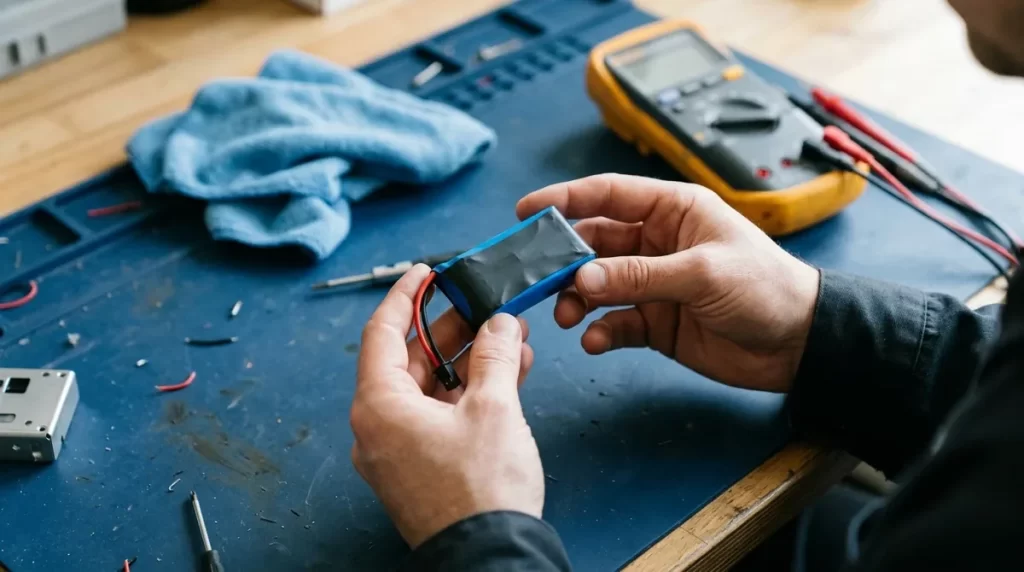
Battery advice varies by chemistry, pack design and battery-management software. Do not apply phone “battery hacks” to a robot. Use the supplied charger or a replacement explicitly approved for the exact model, and follow the manufacturer’s temperature and long-term storage guidance.
Healthy routine
- Place the dock on a stable, dry, ventilated surface.
- Keep contacts aligned and the self-docking route clear.
- Charge within the documented ambient temperature.
- Keep cable strain away from plugs and connectors.
- Record a meaningful drop in runtime across several cycles.
Stop using and charging
- Swelling, split seams or a deformed enclosure
- Leakage, smoke, hissing or a chemical odor
- Abnormal heat compared with normal operation
- Burn marks, melted plastic or repeated power faults
- A wet, crushed, punctured or visibly damaged pack
Sony, for example, documents a 5–35°C charging range for aibo and recommends charging at least every six months during extended non-use. That is an aibo instruction, not a universal interval. The CPSC warns that incompatible chargers and mishandled lithium-ion cells can create overheating, fire and explosion hazards.
Safety references: CPSC battery hazard overview and current CPSC recalls and warnings.
Software maintenance
Updates are maintenance—but installation timing matters
Read release notesConfirm the update is for your model and note behavior, privacy or compatibility changes.
Prepare powerUse the required dock or charge level and do not begin during unstable power or a storm.
Secure connectivityUse a trusted network and the official app, robot command or support process.
Protect dataExport or back up what the platform allows; confirm account credentials before a major migration.
Do not interruptLeave the robot, charger and app alone until the documented completion or restart sequence finishes.
Verify afterwardCheck version, charging, sensors, network, privacy settings and the original problem.
LivingAI, for example, documents that EMO can check and install firmware by voice or through the app and restarts during the process. Sony states that its aibo guide assumes current system software and app versions. Follow the vendor’s sequence rather than a generic reset tutorial.
Calibration
Do not recalibrate a healthy robot on a calendar
Calibration changes the relationship between sensor readings and the robot’s software. It is not equivalent to wiping a lens. Run an official calibration only when the manual requests it, support recommends it or a specific symptom remains after safe inspection and cleaning.
Vision or object detection
First correct fingerprints, lighting, glare and obstructions. Then use only the model’s official test or calibration target.
Microphone or voice recognition
Test network, volume, room noise and microphone openings before changing speech or recognition settings.
Docking and navigation
Clear the route, stabilize the dock and inspect wheels or feet. Do not assume a map reset will repair a mechanical or charging fault.
Touch and posture sensors
Remove external pressure or accessories and reboot normally. Forced joints can turn a sensor problem into physical damage.
Symptom-based diagnosis
Check the least invasive causes first
Robot will not charge
- Stop if there is heat, odor, swelling or visible damage.
- Verify the correct adapter, outlet and dock indicator.
- Confirm alignment and remove approved dry debris.
- Record the light or error and contact support.
Navigation became unreliable
- Check lighting, floor, reflections and new obstacles.
- Inspect accessible wheels, feet and sensor covers.
- Restart using the normal documented process.
- Calibrate or reset only if the manual directs it.
Voice commands fail
- Check internet status and service availability.
- Test volume, room noise and microphone obstruction.
- Confirm language, account and app permissions.
- Document repeatable commands before support.
Robot overheats or shuts down
- Power down and unplug in a safe location.
- Move away from sun, heat and blocked ventilation.
- Do not charge until it has cooled and is inspected.
- Escalate repeated or extreme heat immediately.
For error-specific steps, continue with our robot companion troubleshooting guide. Maintenance prevents some failures; it does not justify repeated experimentation with an unsafe device.
Repair boundary
Know when the screwdriver stays in the drawer
Usually owner-safe
- Approved exterior cleaning
- Normal restart and documented update
- Replacing explicitly user-replaceable consumables
- Account, Wi-Fi and privacy settings
- Removing accessible external hair or debris
Usually service territory
- Opening a sealed shell or gearbox
- Battery-pack repair, cell replacement or soldering
- Joint, motor, camera or internal cable work
- Liquid ingress, impact damage or burnt components
- Repeated thermal, charging or power faults
Sony explicitly warns aibo owners not to remove screws except during the documented disposal process and says unreasonable disassembly can affect repair service. Before any repair, record the serial number, warranty status, purchase date, software version and exact symptom. Ask whether authorization, shipping packaging or a data reset is required.
Printable ownership record
Monthly robot maintenance checklist
Before reset, resale or recycling
Maintenance includes the robot’s data lifecycle
- 1
Export what matters. Save permitted photos, preferences, logs, receipts and support history before a destructive action.
- 2
Understand the reset. Sony warns that initializing aibo clears memories, learned behavior and settings and cannot restore them.
- 3
Remove access. Unlink family accounts, smart-home services, Wi-Fi, payment methods and third-party integrations.
- 4
Request cloud deletion. A factory reset may not delete the vendor account, backups or server-side personal data.
- 5
Recycle correctly. Use manufacturer take-back, authorized electronics recycling or local hazardous-waste routes for batteries.
Common questions
Robot companion maintenance FAQ
Can I clean a robot companion with 70% isopropyl alcohol?
Only if the manufacturer explicitly approves it for that exact surface. Sony specifically says not to use volatile agents such as alcohol on aibo because they can damage the finish.
Should I use compressed air on cameras and sensors?
Use only the method permitted by the manual. Sony recommends a commercially available manual blower or soft cloth for aibo’s camera and sensor covers. High-pressure canned air can force debris or propellant into openings.
How often should a robot be calibrated?
There is no universal interval. Calibrate only through the official process when a documented symptom, manual or support instruction calls for it.
Should I leave a robot on its charging dock?
Follow the model’s charging design. Some robots are designed around docking, while storage instructions vary. Use the supplied charger, documented temperature range and official long-term storage guidance.
When should the battery be replaced?
Contact authorized support when runtime drops substantially, charging errors repeat or the manual identifies end-of-life behavior. Stop immediately for swelling, leakage, odor, smoke or abnormal heat.
Does a factory reset fix performance problems?
Sometimes it resolves configuration problems, but it can permanently erase data and will not repair damaged hardware, a worn battery or a blocked sensor. Use it only after backup and official troubleshooting.
Bottom line
Good maintenance is conservative, documented and model-specific
Keep the robot clean with the least aggressive approved method, protect its charger and battery, install official updates under stable conditions and track changes before they become failures. Avoid universal solvents, improvised chargers, routine factory resets and DIY internal repair.
Most importantly, save the manual and support route while the robot still works. A five-minute monthly inspection and a useful log are more valuable than an elaborate “deep maintenance” ritual the manufacturer never authorized.