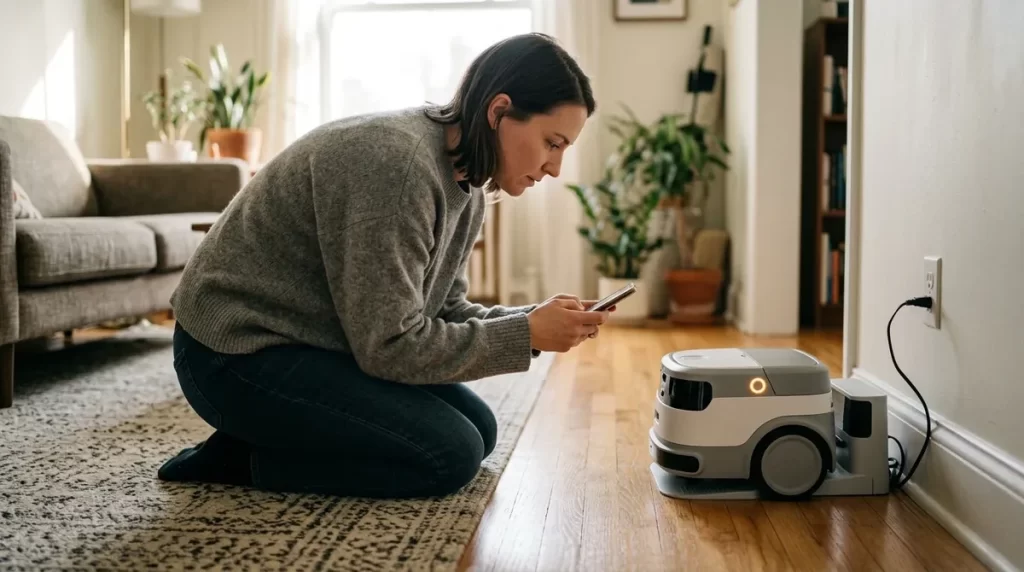
Evidence-first troubleshooting · Updated July 13, 2026
Diagnose the layer before you reset the robot
A robot that appears “broken” may be charging, sleeping, offline, waiting for an update, blocked by a sensor, signed into the wrong account or affected by a vendor outage. This guide helps you separate those conditions, apply the least destructive safe test and collect the evidence support needs.
10-minute triageObserve before changing
24-point checklistPrintable support record
Start here
The first 10 minutes: preserve the clue
The most useful clue often disappears after a restart. Before pressing buttons, note what changed, when it began and which parts still work. A precise statement such as “the app lost cloud status after the router update, but the robot still responds locally” is far more actionable than “nothing works.”
Make it safe
Stop movement, support a robot that may fall, remove trip hazards and disconnect power only when the condition and manual make that safe.
Record the state
Photograph or video the screen, eyes, LEDs, sound, posture and charger. Copy the exact error text, code and time.
Define the boundary
Test one local function, the owner app and another internet service. Determine whether the failure is device-only, network-wide or cloud-side.
Check recent change
New firmware, app, router, password, account, room, floor, accessory, impact, spill or power interruption can narrow the likely layer.
Read the exact indicator
Use the model-specific manual. Color alone is insufficient; steady, pulsing, flashing and flash count can mean different states.
Choose one reversible test
Correct placement, restore a permission or perform the documented normal restart. Re-test before changing anything else.
Symptom router
Choose the first layer that matches the evidence
ConnectionOffline or missing from appWi-Fi, Bluetooth, account, service or permissions
InputCannot hear, see or recognizeRoom conditions, obstruction, permissions or sensor state
MotionFrozen, stuck or misses dockNormal state, floor, obstacle, wheel, map or hardware
SoftwareUpdate, crash or behavior changeVersion mismatch, installation, schedule or cloud change
AccessOwner, subscription or sharing failsWrong identity, region, expired plan or stale invitation
If an unknown person controls the account, sensors activate unexpectedly, settings change without authorization or purchases appear, treat it as a possible security incident and use the robot companion security and privacy response plan rather than ordinary troubleshooting.
Diagnostic hierarchy
Escalate from observation to destructive action
Use the lowest step that can answer the question. “Restart,” “force shutdown,” “reinstall,” “factory reset” and “initialize” are not synonyms. Manufacturer documentation may warn that a forced shutdown can lose settings, while initialization can erase learned behavior, recordings or ownership data permanently.
- 1
Observe
Capture indicators, error, version, environment and last known working time without changing the state.
- 2
Compare
Use the current manual, support notice and known normal behavior for the exact model and revision.
- 3
Correct the environment
Restore safe power, approved charger alignment, lighting, network reach, permissions or clear operating space.
- 4
Run a normal test
Try one documented command or control that isolates the suspected layer, then record the outcome.
- 5
Perform a normal restart
Use the ordinary shutdown and startup procedure only when no update or hazardous condition is present.
- 6
Contact official support
Provide the evidence packet and obtain model-specific instructions before forced shutdown, reset or repair.
- 7
Use destructive recovery only when authorized
Back up or export what the product permits, understand what will be erased and document why the action is necessary.
Layer 1 · Power and charging
Robot will not turn on, charge or stay powered
Begin with the complete power path: outlet, approved adapter, cable, dock or stand, charge contacts, robot position, indicator and battery state. A green light on a charger may only show that the charger has power; it does not necessarily prove current reaches the robot.
Safe checks
- Stop immediately for heat, swelling, odor, damage or liquid.
- Confirm the model-specific charger and every connection.
- Test the outlet with an appropriate known-working low-risk device.
- Compare dock alignment and indicator with the manual.
- Allow the documented recovery time after deep discharge.
- Check room temperature against the permitted charging range.
- Inspect only user-accessible contacts for dry visible debris.
- Record charge percentage and runtime rather than guessing.
Do not
- Substitute a “universal” adapter based only on connector fit.
- Bridge, scrape or wet contacts.
- Open a sealed battery compartment or use loose cells.
- Continue charging a damaged or abnormal battery.
- Assume one model’s button hold applies to another.
- Force a mobile robot off a powered dock while updating.
- Dispose of a lithium battery in household waste.
- Promise that one full discharge will “recalibrate” every battery.
No lights anywhere
- Check safety and outlet.
- Reseat the approved power chain.
- Compare dock indicator with manual.
- Contact support if external power is confirmed but the dock remains dead.
Dock lights, robot does not
- Confirm exact alignment and permitted orientation.
- Allow documented deep-discharge time.
- Check whether a physical power control is required.
- Record robot and dock indicators before support.
Charges but runtime collapsed
- Compare like-for-like use, temperature and features.
- Check recent firmware and background activity.
- Log three ordinary cycles without forced discharge.
- Ask support about battery health or authorized service.
Leaves dock but returns immediately
- Confirm charge level and auto-start settings.
- Check schedule, sleep mode and room lighting.
- Clear the dock approach and inspect permitted sensors.
- Determine whether behavior is configured rather than failed.
For routine cleaning, charge logs and long-term battery care, use the separate robot companion maintenance guide. Troubleshooting should not become unauthorized maintenance.
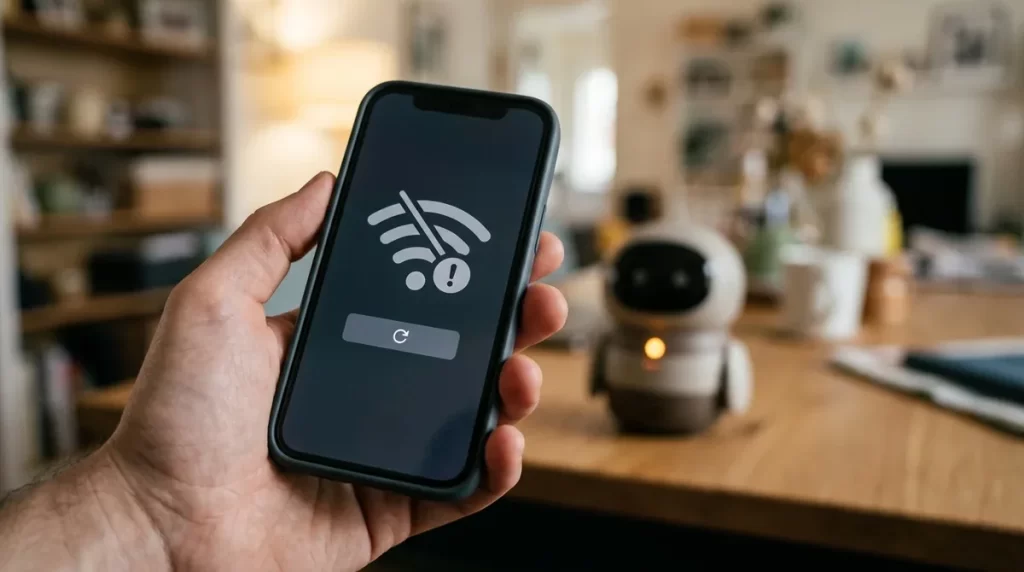
Layers 2–4 · Phone, network and cloud
Robot is offline or the app cannot connect
Connected companions depend on several links. Test them separately: phone-to-app, phone-to-local robot, robot-to-router, router-to-internet and account-to-vendor service. Replacing the Wi-Fi password cannot repair a vendor outage, and reinstalling the app cannot fix an unsupported radio band.
RobotPairing and radio→
RouterBand, WPA and isolation→
InternetDNS and service reach→
CloudAccount and vendor status
App cannot discover the robot
- Confirm the official app and supported OS.
- Keep the phone close and unlock it.
- Review Bluetooth and local-network permissions.
- Close and reopen the app before reinstalling.
- Check whether the robot belongs to another account.
Robot cannot join Wi-Fi
- Verify the supported band and WPA mode.
- Re-enter the exact Wi-Fi name and password.
- Check guest-network client isolation.
- Avoid captive portals unless supported.
- Move closer temporarily without changing every router setting.
Robot is online but services fail
- Test internet on another device.
- Check the vendor’s official service notice.
- Compare local functions with cloud-only ones.
- Confirm subscription and region.
- Wait through a confirmed outage instead of resetting.
Failure began after router replacement
- Compare old and new band, WPA and SSID.
- Remove stale network only through the official app.
- Confirm phone and robot are on compatible segments.
- Do not expose ports or disable firewall protection.
- Record the router model for support.
Layer 5 · Input and environment
Voice, camera or recognition stopped working
Test whether the problem is capture, interpretation or a specific feature. A microphone can hear a wake word but fail in room noise; a camera can work while face recognition is disabled; a proximity sensor can be clear but confused by darkness, glare or reflective material.
Robot does not respond to voice
- Confirm power, listening indicator, mute state and volume.
- Use one documented command at normal distance in a quiet room.
- Check language, wake name, microphone permission and internet need.
- Inspect grilles visually; clean only as the manual permits.
- Test app or touch control to separate audio from total failure.
Camera or face recognition fails
- Check privacy shutter, camera setting and app permission.
- Use even lighting without direct glare or extreme backlight.
- Remove only obvious external obstruction using approved care.
- Test basic presence or image before re-enrolling a face.
- Confirm whether cloud processing or a plan is required.
Touch or presence feels inconsistent
- Confirm the exact touch area and expected gesture.
- Remove unofficial clothing or accessories if the manual allows.
- Test with clean, dry hands and the robot stationary.
- Compare several attempts rather than one miss.
- Do not press harder on a delicate skin or display.
Sensors activate unexpectedly
- Identify which indicator proves the sensor is active.
- Review routines, remote access and proactive settings.
- Check linked caregivers, accounts and integrations.
- Disconnect the network if unauthorized access is plausible.
- Preserve logs and follow the security incident plan.
Do not run a generic “sensor calibration.” Calibration is model- and symptom-specific and may alter navigation or recognition. Use it only when the official manual requests it or manufacturer support recommends it after basic conditions have been checked.
Layer 6 · Motion and navigation
Robot freezes, moves poorly or misses the charger
First decide whether movement is expected. A robot may be asleep, charging, updating, cooling, following a schedule, concentrating on an interaction or intentionally limiting movement after detecting a risk. A stationary response is not automatically a motor failure.
State
Read the status indicator and app. Rule out sleep, update, low battery, pause, pickup or safety mode.
Surface
Move only through the approved pickup method to a level, supported surface with good lighting.
Path
Remove cords, thresholds, reflective objects, deep rugs, stairs and clutter; clear the documented dock approach.
External condition
Inspect accessible wheels, feet and sensor windows without opening covers or forcing joints.
Known command
Use one official movement or interaction command to distinguish idle behavior from inability.
Normal restart
If permitted and no update is active, perform the ordinary shutdown—not a force shutdown—and retest.
Will not leave charger
Check battery state, scheduled sleep, auto-start setting, room light and whether it was placed on the dock while fully powered off. Some robots require an explicit wake action.
Cannot find charger
Verify the dock has power, matches the registered robot, remains in its mapped position and has the manual’s required clearance. Test from nearby before rebuilding a map.
Stops in one room
Compare floor transition, light, glare, narrow clearance, Wi-Fi reach and new obstacles. Reproduce the same path twice and record the exact stopping point.
Joint or wheel sounds abnormal
Stop movement and compare with the baseline. Do not lubricate, force or repeatedly command the mechanism. Send a clear recording to authorized support.
Layer 7 · Software and behavior
Update stalls, app crashes or behavior changes
A behavior change after an update may be a new setting, a deliberate feature change, an incomplete synchronization or a defect. Record both robot and app versions and read the release notes before trying to downgrade or manually install anything. Do not download firmware from a forum, file-sharing site or another model’s support page.
- Check whether the documented update indicator is active.
- Keep approved power and internet stable.
- Wait the manufacturer’s stated period.
- Check service notices from another device.
- Contact support before interrupting power.
- Confirm app and phone OS compatibility.
- Close and reopen; check phone storage and connectivity.
- Compare web access if the vendor offers it.
- Sign out only if recovery credentials are available.
- Reinstall last, after preserving needed local data.
- Read release notes and new defaults.
- Review schedules, privacy and autonomy settings.
- Repeat the same controlled test.
- Record version, date and reproducible steps.
- Report a defect instead of repeatedly resetting.
LivingAI documents that EMO can check and install firmware by voice or through the app and restarts during the process. LOVOT documentation says its Nest can show a green update state and should not be powered off. Those examples reinforce the same principle: identify the official update state before treating a restart or delay as failure.
Account, plan and region
The hardware may work while ownership does not
Account trouble can look like device failure. Verify the owner identity, product registration, region, subscription, payment status, family invitation and service entitlement. A factory reset may erase local data without releasing the robot from the previous owner or restoring an expired cloud plan.
Used or transferred robot
Ask the prior owner to follow the official unlink, initialization and plan-transfer rules. Obtain proof that the serial is eligible before paying for a used cloud-dependent product.
Subscription expired
Separate features that require an active plan from offline functions. Review current terms and reactivate only through the vendor’s official account portal.
Caregiver cannot connect
Check whether the invitation was sent to the correct address or phone, whether it expired and what role the owner approved. Do not share the primary password.
Region or store mismatch
The robot, app-store account, phone OS, payment method and service country may all need to be supported. Cross-border purchases can fail after apparently successful hardware setup.
ElliQ’s current consumer FAQ, for example, says the service requires power and Wi-Fi and is supported exclusively within the United States. It also directs owners to its own customer-service team. Confirming those dependencies is more useful than applying a generic robot reset. See the official ElliQ FAQ.
Read indicators in context
One color can represent several different states
Never publish or follow a universal “red light means hardware failure” table. Use product, indicator location, pattern and current state together.
| Official example | Indicator | Documented meaning | Correct next source |
|---|---|---|---|
| Sony aibo | Steady red status LED | Sleep mode, not automatically a fault | Current aibo LED article and My aibo Body status |
| Sony aibo | Three red flashes at startup, then off | Battery is almost empty | Charge, then restart as Sony directs |
| LOVOT 3.0 Nest | Green status light | Software update in progress | Wait and do not remove power |
| LOVOT 3.0 Nest | Flashing red or steady purple | Nest error | Use the exact documented Nest restart, then support if persistent |
Sources: Sony aibo status LED and LOVOT 3.0 Nest status. Indicator behavior can change with model and firmware; always verify the current page.
Last resort
When a factory reset is justified—and when it is not
A reset is a data and ownership decision, not a universal repair. It may be appropriate for an official transfer, a support-directed recovery, a documented account compromise or a persistent software problem after safer steps fail. It is not the first response to a cloud outage, bad Wi-Fi password, blocked sensor, expired plan, damaged battery or suspected hardware failure.
Do not reset yet if…
- An update indicator is active.
- The device is hot, damaged, wet, swollen or unsafe.
- The vendor reports an outage.
- You cannot access the owner or recovery account.
- You have not exported permitted data or recorded settings.
- The robot may still belong to another owner.
- A specific error code needs support interpretation.
Proceed only when…
- The exact manufacturer procedure is open.
- You understand local and cloud data loss separately.
- Ownership, subscription and transfer consequences are known.
- Power and network requirements are available.
- Recovery credentials and product key are ready.
- Support has approved the action when uncertainty remains.
- You can complete setup again without abandoning the device.
Escalation
Build a support ticket that can be acted on
Official support can work faster when the first message contains identifiers, chronology and reproducible evidence. Never send a password, full recovery code, payment-card number or one-time MFA code. Contact the company through the address in the official app, manual or manufacturer website; the FTC warns that urgent security pop-ups and unsolicited support messages can be scams.
- Exact model and hardware revision
- Serial or device ID through the secure form
- Country, seller and purchase date
- Warranty or membership status
- Robot and dock firmware
- Official app version
- Phone OS and router model
- Date of last successful update
- Exact symptom and first occurrence
- Error text, code and indicator pattern
- Last change before failure
- Repeatable steps and frequency
- Photo or short video without private data
- Actions already tried and outcomes
- Whether local, app and cloud functions work
- Safety event, fall, spill or heat disclosed
Copy this concise opening
Model / version: [exact model, robot firmware, app version]
Problem: [one observable sentence]
Started: [date, time and preceding change]
Still works: [power, local response, app, internet, charging]
Error evidence: [exact code, light pattern, photo/video]
Safe steps tried: [one line per action and result]
Requested outcome: [interpret indicator, authorize restart, repair or account correction]
Verify support details yourself through the official website. See the FTC’s warning about urgent fake security and support messages.
Print or save
24-point robot companion troubleshooting checklist
Common questions
Robot companion troubleshooting FAQ
Why is my robot companion not turning on?
First stop for damage, heat, odor, swelling or liquid. Otherwise verify the outlet, exact approved adapter, dock connections, charge alignment, expected indicator and documented deep-discharge time. A dock light does not necessarily prove the robot is receiving power. Record both indicators before contacting support.
Why is my robot connected to Wi-Fi but shown offline?
The router connection and vendor cloud session are separate. Check internet access on another device, account and subscription status, the vendor’s service notice, app permissions and whether the app shows stale data. Do not factory-reset during a confirmed cloud outage.
Why does my robot no longer respond to voice commands?
Confirm listening and mute indicators, volume, wake name, language, room noise and internet requirements. Test one documented command in a quiet room, then use touch or app control to see whether only the audio path is affected. Clean microphone openings only as the manual permits.
Should I restart a frozen robot?
First identify whether it is sleeping, charging, updating or showing a documented error. If the manual permits a normal restart and no hazardous condition or update is present, use that ordinary procedure. Forced shutdowns can relax joints or lose settings and must be model-specific.
Will a factory reset fix connection problems?
Not necessarily. It cannot repair an unsupported Wi-Fi band, vendor outage, expired plan, failed dock, damaged radio or old-owner account lock. It may also erase valuable data. Diagnose the failed layer and use reset only when the manufacturer procedure addresses that cause.
How do I know whether the problem is hardware or software?
No single test proves it. Reproducibility across a normal restart, exact error codes, failure of local controls, abnormal sound or movement, physical damage and official diagnostics can strengthen the hardware case. Version-specific behavior, cloud outages or settings that affect only one feature may point to software or service. Manufacturer support should make the final service determination.
Can I repair a robot companion myself?
Limit work to user-serviceable actions explicitly documented for your model. Opening sealed hardware, forcing joints, replacing internal batteries, flashing unofficial firmware or using improvised power can create safety risks, destroy data and void coverage. Obtain authorized repair instructions and shipping requirements.
The reliable method
Good troubleshooting reduces uncertainty without creating damage
Start with safety, preserve the indicator, define which layer failed and make one reversible change. Use the exact manual for restarts, updates, indicators and user-serviceable care. If the cause remains uncertain, a precise evidence packet is more valuable than a sequence of increasingly destructive guesses.
The goal is not merely to make the robot move once. It is to understand whether the product is safe, supported and recoverable—and whether the same failure is likely to return.